Model export
Every processing run can become a regular QGIS processing model, a .model3 file, which you can inspect, edit, re-run on other data, and share.
From the chat
Each processing result ends with two links that apply to that run:
Open in Model Designer opens the run in QGIS’s Model Designer.
Save as .model3 asks where to save the model file.
The links keep working for every run in the conversation, not just the latest. They disappear when you clear the chat.
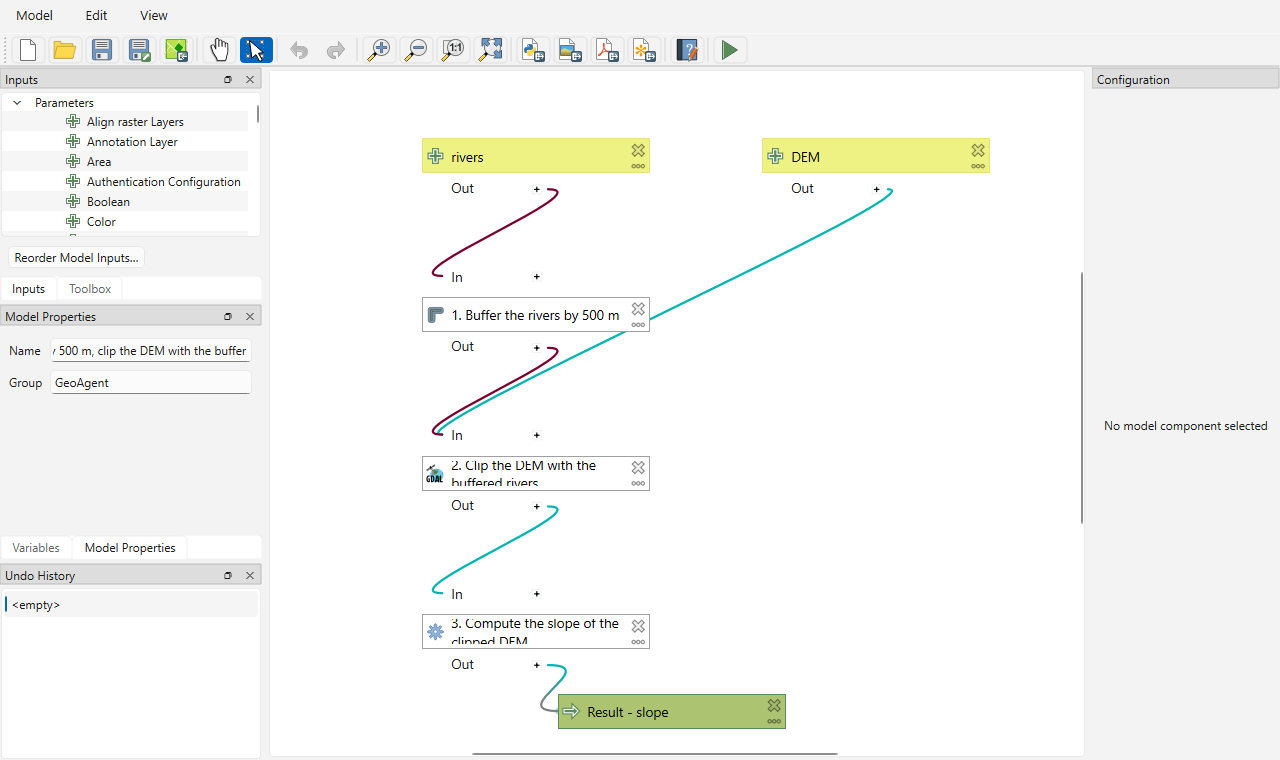
What’s in the model
One step per algorithm that ran, labelled with its task (“1. Buffer the rivers by 500 m”) and using the parameter values that worked.
Connections between steps: where a task used an earlier task’s output, the model passes that output along.
Your layers become model inputs. They default to the layers you used, so the model runs as-is in the same project and asks for other layers elsewhere.
Final results become model outputs. Intermediate results stay temporary.
Only successful geoprocessing steps are included. Loading a layer, selecting features or answering a question has no place in a processing model. A run with nothing to export gets no links.
Saving
Save as .model3 suggests your QGIS models folder. Models saved there appear in the Processing Toolbox under Models ▸ GeoAgent, ready to run like any other algorithm. You can also save from the Model Designer, including into the current project.
Doing it automatically
To open or save every run without clicking, set After a processing run in the Settings tab:
Choice |
After each successful processing run |
|---|---|
Just show the result (default) |
Nothing extra; use the links when you want them. |
Open in Model Designer |
The Model Designer opens with the run. |
Ask to save as .model3 |
The save dialog opens. |
These act after the run, so the chain always runs first. Click Save Settings to keep your choice across QGIS sessions.